How to make certificates from a Google Sheet
Certificates take a long time by hand. You copy the design, type a name, save it, and do it again. With 30 students, that is 30 copies. With a whole school, it is hundreds.
A Google Sheet already has the names. This guide shows how to turn each row into its own certificate. It uses one design and one sheet.
What you need
- A Google Sheet with one row for each person. Row 1 holds the column names.
- A certificate design in Google Slides or Google Docs.
- An empty folder in Google Drive.
Your sheet might look like this:
| Student Name | Course | Score | Date |
|---|---|---|---|
| Maya Okafor | Biology | 94 | 12 Jun 2026 |
| Leo Martin | Chemistry | 88 | 12 Jun 2026 |
Use made-up names when you test. Use the real list once the design is right.
Docs or Slides?
Both work as a template. Pick the one that fits your design.
- Google Slides suits a wide certificate with a border, a logo and big text. Each slide is a page.
- Google Docs is good for a certificate with more text, such as a short letter.
Most people pick Slides for certificates. Set the page to a wide shape in Slides first.
Step 1: Design the certificate
Make your design as usual. Add the logo, the border and the title. Then type a tag wherever a name or detail goes.
A tag is a column name inside double angle brackets. For example:
This certificate is given to
<<Student Name>>for<<Course>>.
The tag must match the column name in row 1. Fillmore also accepts {{Student Name}}.
Tip: make each tag's text box wide enough for a long name. Long names then stay on one line.
Step 2: Set up the job
Set up the job as in the mail merge guide, steps 2 and 3. In short, open Extensions, then Fillmore, then Open Fillmore. Press Set up a job for this tab. Then:
- Press Choose template. Pick your certificate design.
- Check that each tag matches a column. Pick a column for any tag that has none.
- Press Choose folder. Pick the folder for the certificates.
Step 3: Pick PDF and a file name
Open Change file name. Make each name clear, such as "Certificate - Maya Okafor". Add the name column with its button.
Under Each row makes, pick A PDF. A PDF looks the same on every computer. It is also easy to print or attach to an email.
Press Save job.
Step 4: Test one certificate
Press Try one row first. Fillmore makes one certificate. Open it from the sidebar and check it.
Check these things:
- Is the name spelled right, with no extra spaces?
- Does a long name fit on its line?
- Is the date in the format you want?
Fillmore uses the text as you see it in the sheet. So set the date format in Sheets first.
Step 5: Make every certificate
Press Make files. Fillmore makes one PDF for each row. It saves them all in your folder.
The sheet gets a new column called "Fillmore status". Each row says done or failed. A done row links to its file.
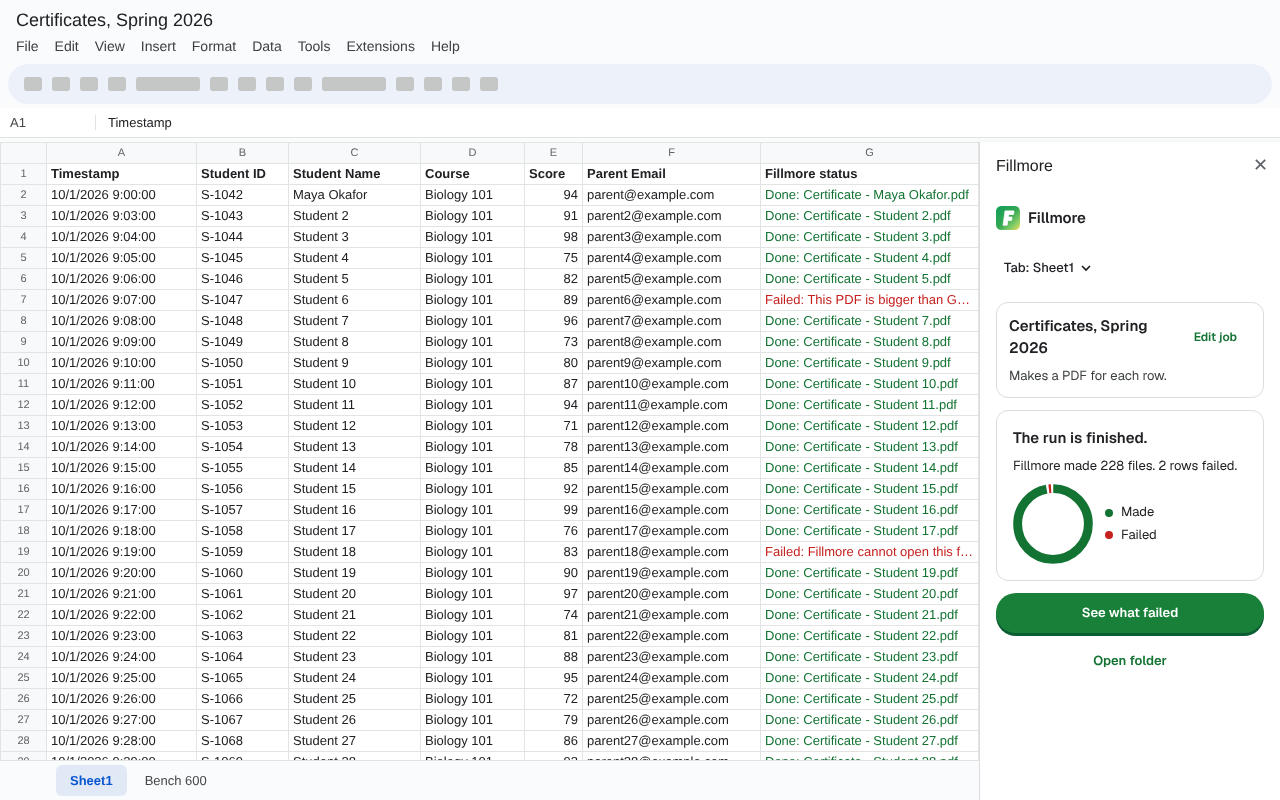
If a row failed, press See what failed. Each failed row says what to fix. Fix it, then press Retry failed rows. The certificates that are done stay as they are.
Send each certificate by email
Fillmore can also email each certificate to the address in its row. Each email has the PDF attached. See how to send personalised emails with attachments. Writing letters instead? See personalised letters from Google Sheets.
How many can I make?
Fillmore keeps to Google's Apps Script limits. That is 250 new files a day on a free Gmail account. It is 1,500 on Workspace. Docs and Slides each have their own count. Fillmore shows how many are left today. Source: Apps Script quotas, read 16 Oct 2026.
To plan a big list, see the daily limits. For a big list, Fillmore makes what fits today. Rows over the limit show Failed, with the reason. After 24 hours, press Retry failed rows.