Google Sheets to PDF, one PDF for each row
Google Sheets can save a whole sheet as one PDF. But often you need something else. You need one PDF for each row.
For example:
- an invoice for each customer, as in the invoices guide
- a report card for each student
- a letter for each member
Each PDF needs its own name, so you can find it later. This guide shows how to do that.
Why "Download as PDF" is not enough
In Sheets, File, then Download, then PDF saves the sheet as it looks. You get one PDF with every row in a table.
That is fine for a list. It is not fine for a letter to one person. For that, you need a template. Then you fill the template once for each row.
The idea: a template, filled once per row
The steps are the same for any tool:
- Make a template in Google Docs or Google Slides.
- Put a tag where each value goes, such as
<<Customer>>. - For each row, copy the template and fill in the tags.
- Save the filled copy as a PDF, with a clear name.
You can do this by hand. You can also write a script in Apps Script, but that needs code. Fillmore does it from a sidebar, with no code.
Step 1: Make the template
Open a new Google Doc. Write the page as you want it to look. Add a tag for each value from the sheet.
Invoice for
<<Customer>>Amount due:
<<Amount>>
Each tag must match a column name in row 1 of your sheet. Fillmore also accepts {{Customer}}.
Step 2: Set up the job in Fillmore
Set up the job as in the mail merge guide, steps 2 and 3. In short, open Extensions, then Fillmore, then Open Fillmore. Press Set up a job for this tab. Then:
- Press Choose template. Pick the Doc you made.
- Check each tag matches a column.
- Press Choose folder. Pick the Drive folder for the PDFs.
Step 3: Choose PDF and the file name
Open Change file name. The box shows the name pattern. Below it, you see an example from row 2.
Make the name useful. "Invoice - {{Customer}} - {{Invoice Number}}" is easy to search for later. Press a column's button to add it to the name.
Under Each row makes, pick A PDF. Fillmore then keeps only the PDF. The filled copy it used goes to Drive trash.
Want an editable copy too? Pick A PDF and a filled copy.
Press Save job.
Step 4: Make the PDFs
Press Try one row first. Open the PDF and check it.
Then press Make files. Fillmore makes one PDF for each row. It saves every PDF in your folder.
The sheet gets a column called "Fillmore status". Each done row shows the file name, with a link to the PDF.
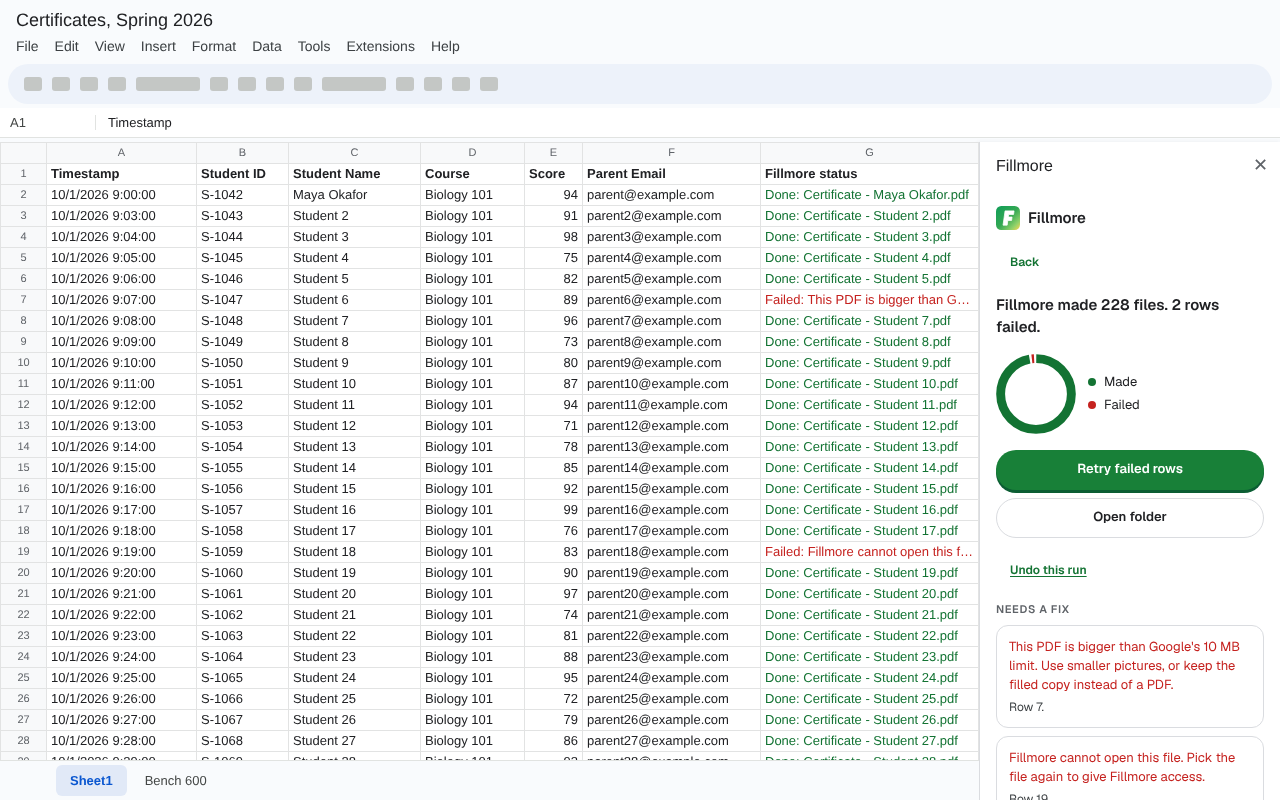
When a row fails
The other rows still get their PDFs. The failed row says why it failed. For example, Google stops a PDF over 10 MB. Then Fillmore asks you to use smaller pictures.
Fix the problem. Then press Retry failed rows.
Add new rows later
Fillmore skips rows that already have a PDF. Only new or changed rows get PDFs. So you can add rows next week and press Make files again. Read how only new rows get files for the details.
Fillmore knows a done row by the values it uses. Change a value Fillmore uses, and that row gets a new PDF. The old PDF stays in the folder.
Want the new PDF to replace the old one? Open More options. Pick an ID column (optional), such as an invoice number. Each row needs its own ID.
Daily limits
Fillmore keeps to Google's Apps Script limits. That is 250 new files a day on a free Gmail account. It is 1,500 on Workspace. Fillmore shows the number left today. Source: Apps Script quotas, read 16 Oct 2026.
Rows over the limit show Failed, with the reason. After 24 hours, press Retry failed rows.