How to make Google Slides from spreadsheet data
Sometimes each row of a sheet needs its own slides. A profile card for each team member. A one-page summary for each project. A name badge for each guest.
Copying a deck and typing each value is slow. It is also easy to miss a slide. This guide shows how to make the slides from the sheet.
What you need
- A Google Sheet. Row 1 holds the column names. Each row under it is one record.
- A Google Slides file to use as the template.
- A Drive folder for the new files.
Here is a sample sheet for name badges:
| Name | Team | Role |
|---|---|---|
| Aisha Khan | Science | Lab lead |
| Leo Martin | Maths | Teacher |
How it works
You design the Slides file once. Where a value goes, you type a tag. A tag is a column name inside double angle brackets, such as <<Name>>.
For each row, Fillmore copies the Slides file. It swaps each tag for the value in that row. Then it saves the copy with its own name.
Each row gets a whole Slides file. If the template has 3 slides, each new file has 3 slides.
Step 1: Design the template
Open Google Slides and make a new file. Design it as usual. Add your logo, colours and pictures.
Type tags in text boxes, where the values go:
<<Name>>
<<Role>>,<<Team>>team
Tags can be on any slide, in any text box. Fillmore also accepts {{Name}}. The template guide explains every tag rule.
Make each text box big enough for the longest value. Check your longest name in the sheet.
Step 2: Set up the job
Set up the job as in the mail merge guide, steps 2 and 3. In short, open Extensions, then Fillmore, then Open Fillmore. Press Set up a job for this tab. Then:
- Press Choose template. Pick your Slides file.
- Check that each tag matches a column. Pick a column for any tag that has none.
- Press Choose folder. Pick the folder for the new files.
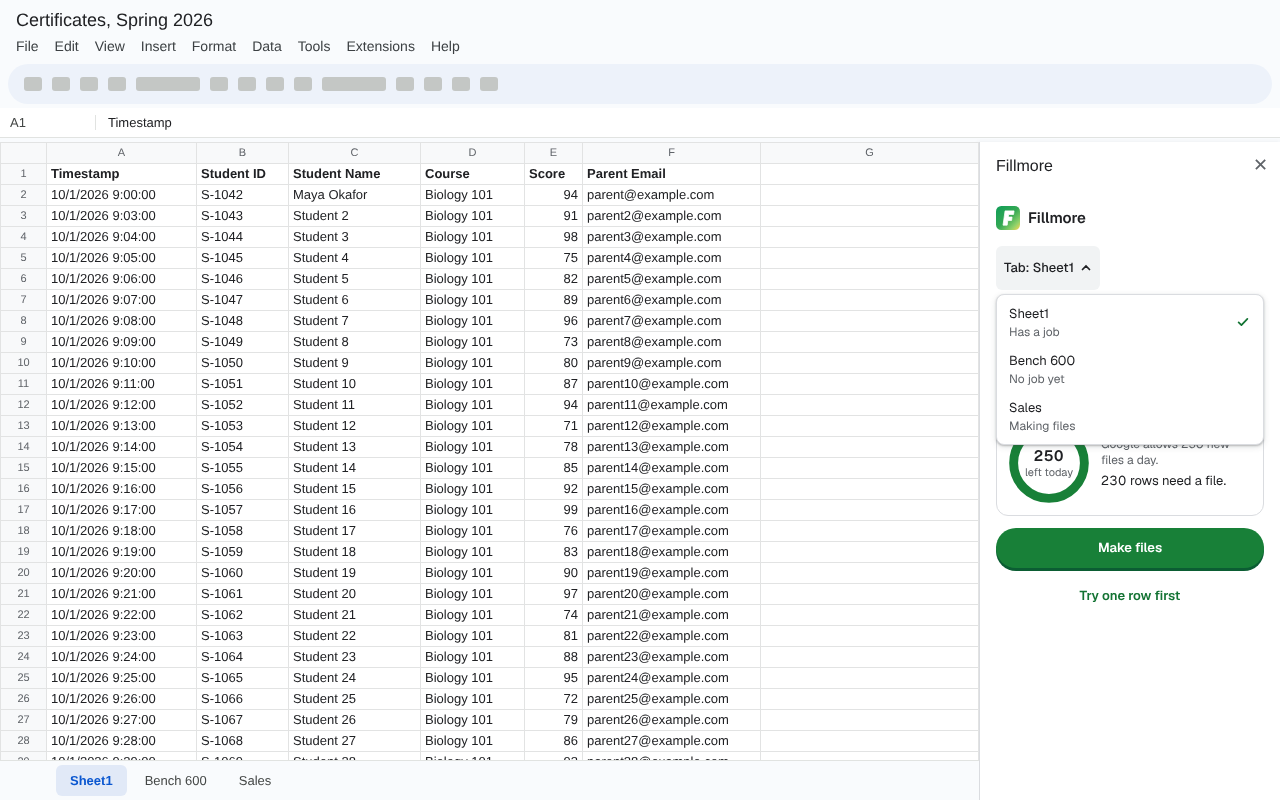
Each tab in your sheet can have its own job. For example, one tab for badges and one for certificates.
Step 3: Pick Slides, PDF or both
Open Change file name. Set a clear name, such as "Badge - {{Name}}".
Under Each row makes, pick what you need:
- A filled copy of the template keeps a Google Slides file. You can still edit it.
- A PDF is best to print or send.
- A PDF and a filled copy keeps both.
Press Save job.
Step 4: Test one row
Press Try one row first. Fillmore makes the file for the first row that needs one. Open it.
Check each slide. Are all the tags filled? Does the text fit in each box?
A tag with no value in the row becomes empty. So check that the row has every value.
Step 5: Make all the files
Press Make files. Fillmore makes one Slides file, or PDF, for each row. It writes the result of each row in a column called "Fillmore status".
A big run can take a while. Google lets an add-on work for 6 minutes per run. Fillmore then continues the run. While the sidebar is open, it continues straight away. When the sidebar is closed, it continues once an hour. That needs your permission to run in the background.
Daily limits for Slides
Fillmore keeps to Google's Apps Script limits. That is 250 new files a day on a free Gmail account. It is 1,500 on Workspace. Google counts new Slides files apart from new Docs. Fillmore shows how many are left today. Source: Apps Script quotas, read 16 Oct 2026.
Rows over the limit show Failed, with the reason. After 24 hours, press Retry failed rows.
Undo a run
Made the files with a mistake in the template? Press See results. If rows failed, the button says See what failed instead. Then press Undo this run, and confirm with Move files to trash. Fillmore moves the files from that run to Drive trash. Only the latest run of a job can be undone. Fix the template and press Make files again.